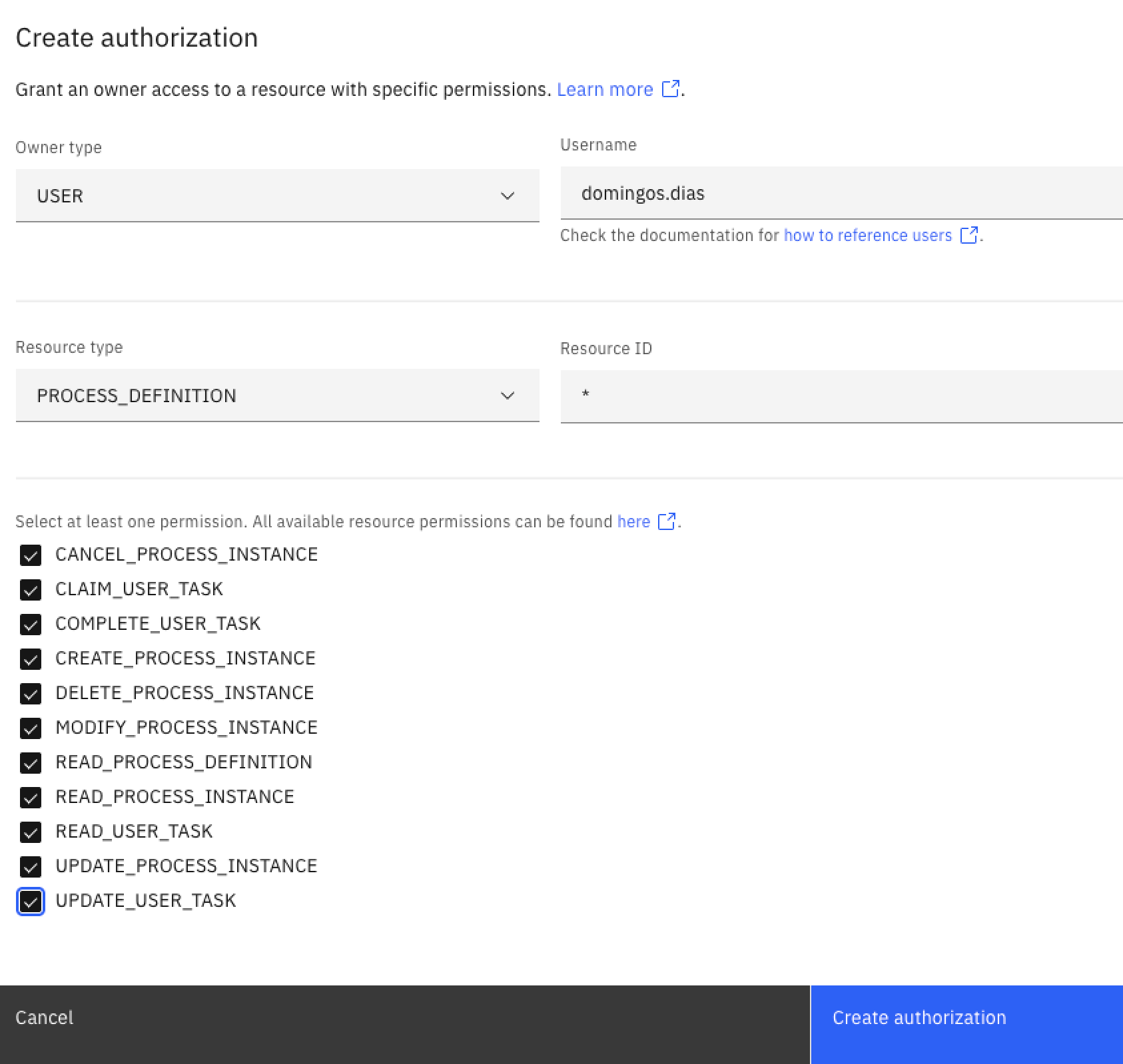
Good morning everyone
I’m having trouble using CAMUNDA 8.9.5 Self-managed with Docker on a Linux server, which means that access to CAMUNDA applications like operate and tasklist is done remotely via browser from other Windows computers.
I used CAMUNDA 8.7 normally, I changed everything, got the official CAMUNDA docker compose for CAMUNDA 8.9.5, started all the containers, only disabled optimize by choice:
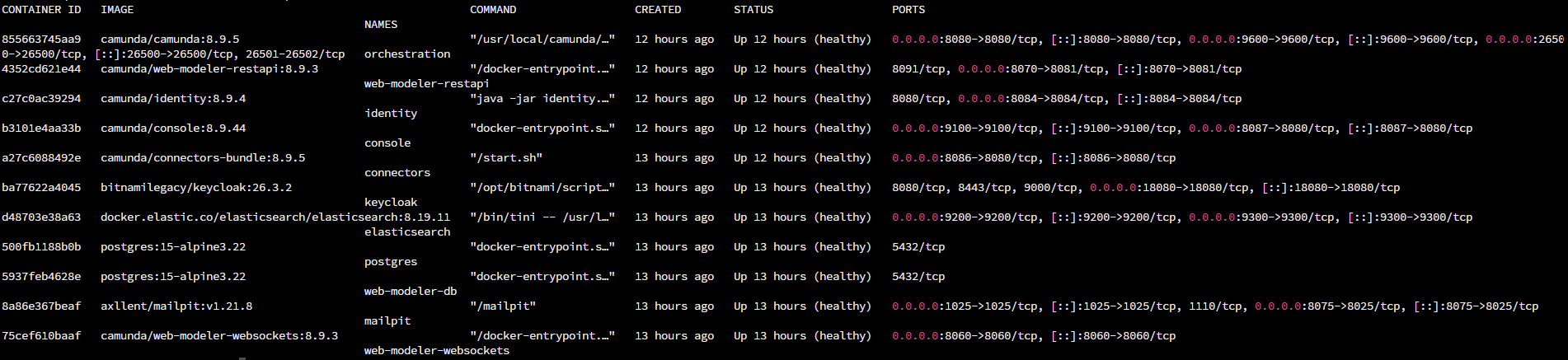
However, everything seems to be not working.
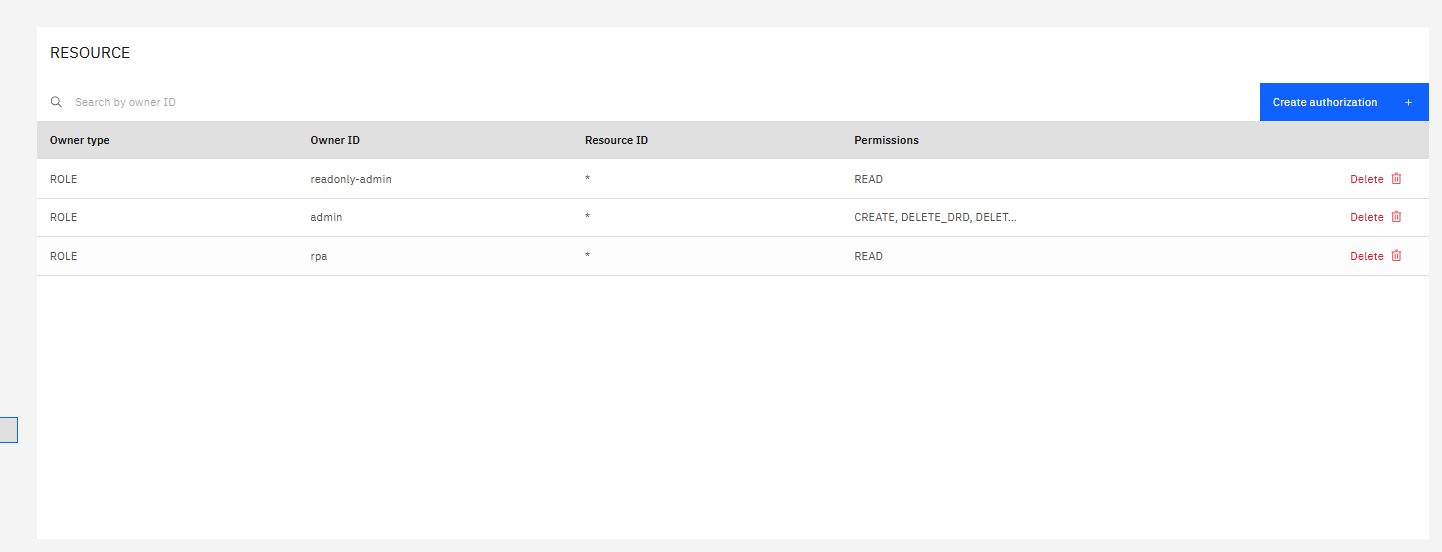
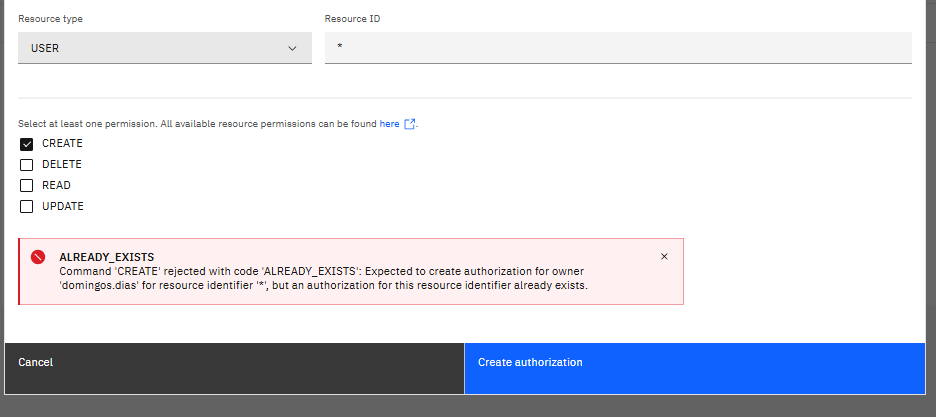
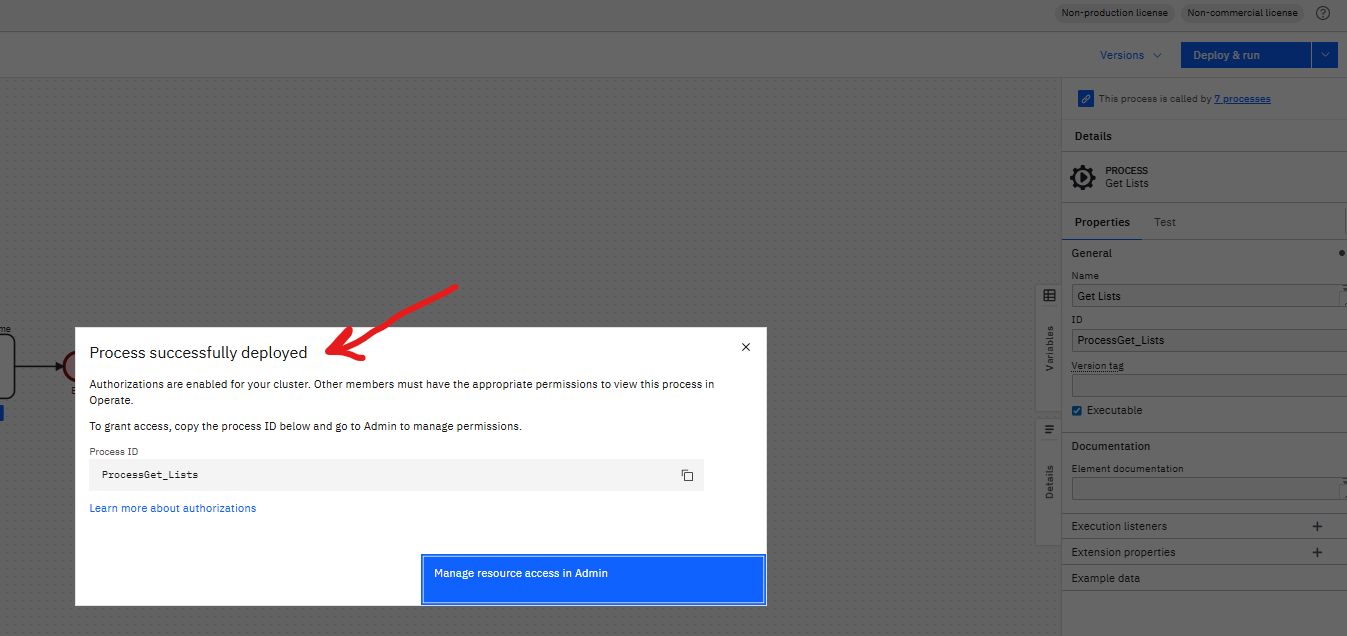
First: I can only deploy with the demo user; the others don’t have authorization. I went to Admin following the instructions, gave the RESOURCE create authorization to a specific user, but this user doesn’t appear in the list of users authorized in RESOURCE:
Second: Even after deploying a process definition, these definitions do not appear in the deployed processes:
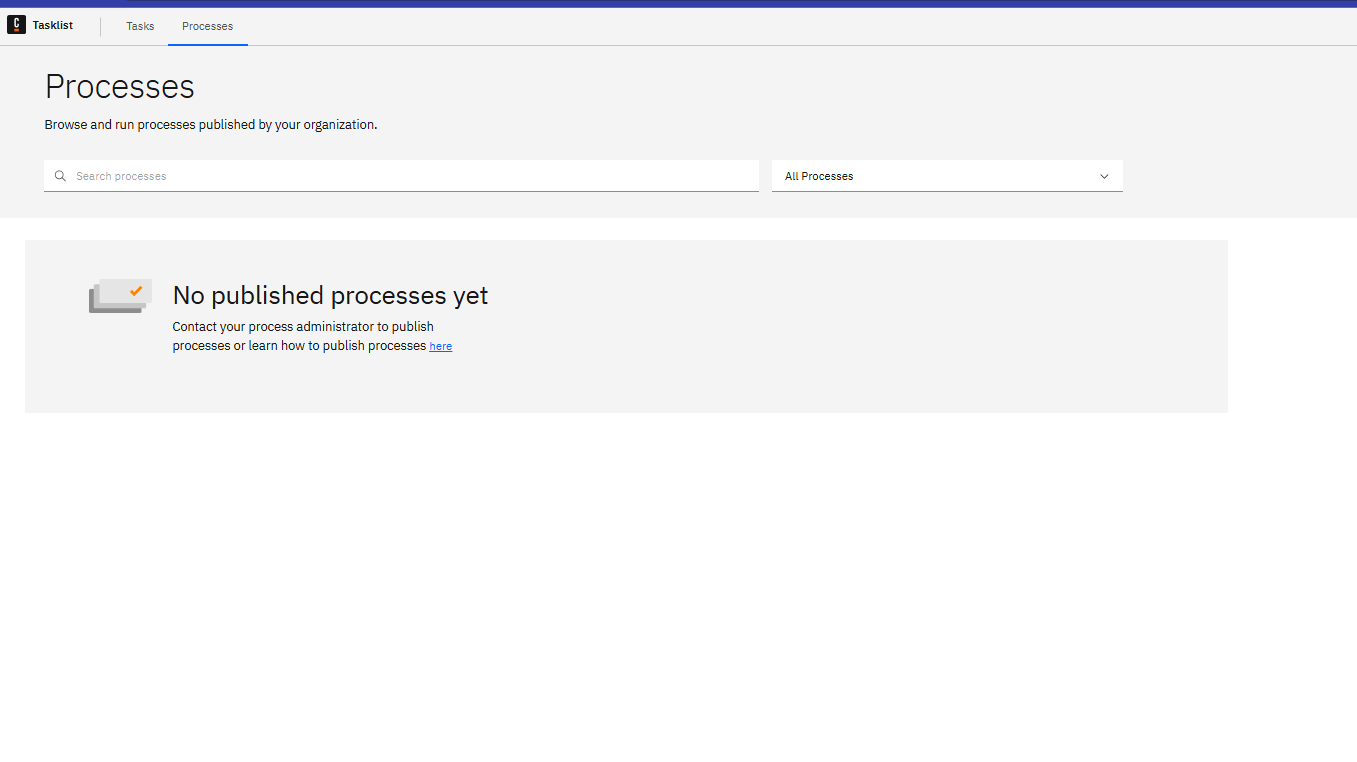
Third: Even after deploying and running, and Camunda reporting success, we have no record of any process instance in operate:
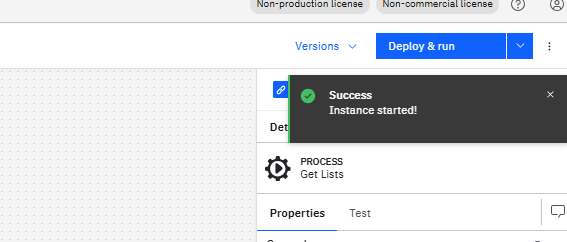
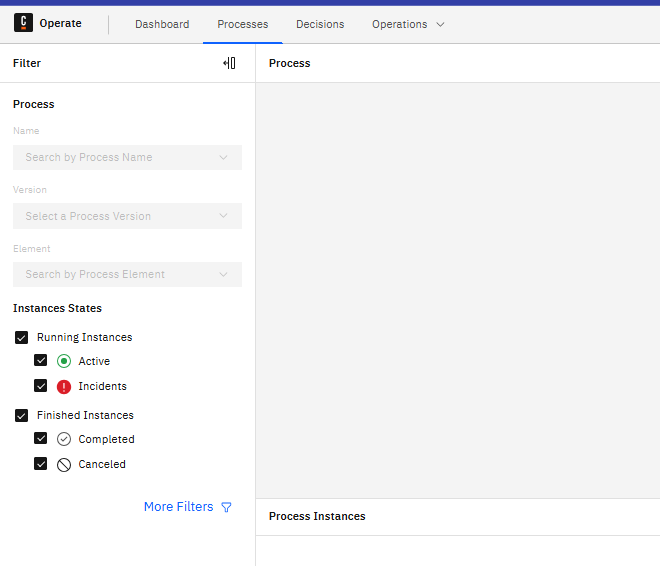
I don’t know what special settings I still need to make, if anyone can help, I would appreciate it.
Logged-in user = demo. Has all permissions by default.
.env file:
## Image versions ##
# renovate: datasource=docker depName=camunda/camunda
CAMUNDA_VERSION=8.9.5
# renovate: datasource=docker depName=camunda/connectors-bundle
CAMUNDA_CONNECTORS_VERSION=8.9.5
# renovate: datasource=docker depName=camunda/identity
CAMUNDA_IDENTITY_VERSION=8.9.4
# renovate: datasource=docker depName=camunda/operate
CAMUNDA_OPERATE_VERSION=8.9.5
# renovate: datasource=docker depName=camunda/tasklist
CAMUNDA_TASKLIST_VERSION=8.9.5
# renovate: datasource=docker depName=camunda/optimize
CAMUNDA_OPTIMIZE_VERSION=8.9.5
# renovate: datasource=docker depName=camunda/web-modeler-restapi
CAMUNDA_WEB_MODELER_VERSION=8.9.3
# renovate: datasource=docker depName=camunda/console
CAMUNDA_CONSOLE_VERSION=8.9.44
# renovate: datasource=docker depName=elasticsearch
ELASTIC_VERSION=8.19.11
KEYCLOAK_SERVER_VERSION=26.3.2
# renovate: datasource=docker depName=axllent/mailpit
MAILPIT_VERSION=v1.21.8
POSTGRES_VERSION=15-alpine3.22

# Camunda Run configuration file to mount into the orchestration container
ORCHESTRATION_CONFIG_FILE=application-h2.yaml

## Network Configuration ##
# HOST: Used for browser/external access URLs (e.g., redirect URIs, UI links)
HOST=Linux_Server_IP_Address
# KEYCLOAK_HOST: Hostname for Keycloak browser access
KEYCLOAK_HOST=host.docker.internal

## OIDC Client Configuration ##
# Orchestration (Zeebe Gateway + Operate + Tasklist)
ORCHESTRATION_CLIENT_ID=orchestration
ORCHESTRATION_CLIENT_SECRET=secret

# Connectors
CONNECTORS_CLIENT_ID=connectors
CONNECTORS_CLIENT_SECRET=demo-connectors-secret

# Console
CONSOLE_CLIENT_SECRET=demo-console-secret

# Optimize
OPTIMIZE_CLIENT_SECRET=demo-optimize-secret

## Database Configuration ##
# Identity/Keycloak PostgreSQL Database
POSTGRES_DB=bitnami_keycloak
POSTGRES_USER=bn_keycloak
POSTGRES_PASSWORD=demo-postgres-password

# Web Modeler PostgreSQL Database
WEBMODELER_DB_NAME=web-modeler-db
WEBMODELER_DB_USER=web-modeler-db-user
WEBMODELER_DB_PASSWORD=demo-webmodeler-password

## Keycloak Admin Credentials ##
# WARNING: Change these for production deployments!
KEYCLOAK_ADMIN_USER=admin
KEYCLOAK_ADMIN_PASSWORD=admin

## Web Modeler Configuration ##
# Pusher configuration for WebSocket communication
WEBMODELER_PUSHER_APP_ID=web-modeler-app
WEBMODELER_PUSHER_KEY=web-modeler-app-key
WEBMODELER_PUSHER_SECRET=web-modeler-app-secret

# Mail configuration (using local Mailpit)
WEBMODELER_MAIL_FROM_ADDRESS=noreply@camunda.example.com

## Feature Flags ##
# Set to 'true' to enable resource based authorizations for users and groups
# This can be used to limit access for users or groups to view/update specific
# processes and decisions in Operate and Tasklist
RESOURCE_AUTHORIZATIONS_ENABLED=false

## Document Store Configuration (Optional) ##
# Uncomment and configure if using external document storage
# DOCUMENT_DEFAULT_STORE_ID=...
# AWS_ACCESS_KEY_ID=...
# AWS_SECRET_ACCESS_KEY=...
# AWS_REGION=...
# DOCUMENT_STORE_AWS_BUCKET=...
# DOCUMENT_STORE_AWS_BUCKET_PATH=...
# DOCUMENT_STORE_AWS_CLASS=...

 Hints: Use the Ask AI feature in